

You can check your Jio AirFiber speed using the MyJio app, the JioHome app, or various online speed test websites. The Jio apps provide more accurate results by testing the speed directly from your Jio equipment.
Using the MyJio App
The MyJio app offers an integrated diagnostic tool that can check your internet speed and troubleshoot potential issues.
- Open the MyJio app and log in to your account.
- Tap on the ‘Fiber’ tab in the top menu (this applies to both JioFiber and AirFiber services).
- Navigate to ‘JioCare’ on the bottom bar.
- Select ‘Run Diagnostics’ and choose ‘Internet Connectivity’ or ‘Wi-Fi coverage and health’ to start the test.
- View the results, which will display your download and upload speeds, as well as ping and jitter metrics. The app will suggest troubleshooting steps if issues are detected.
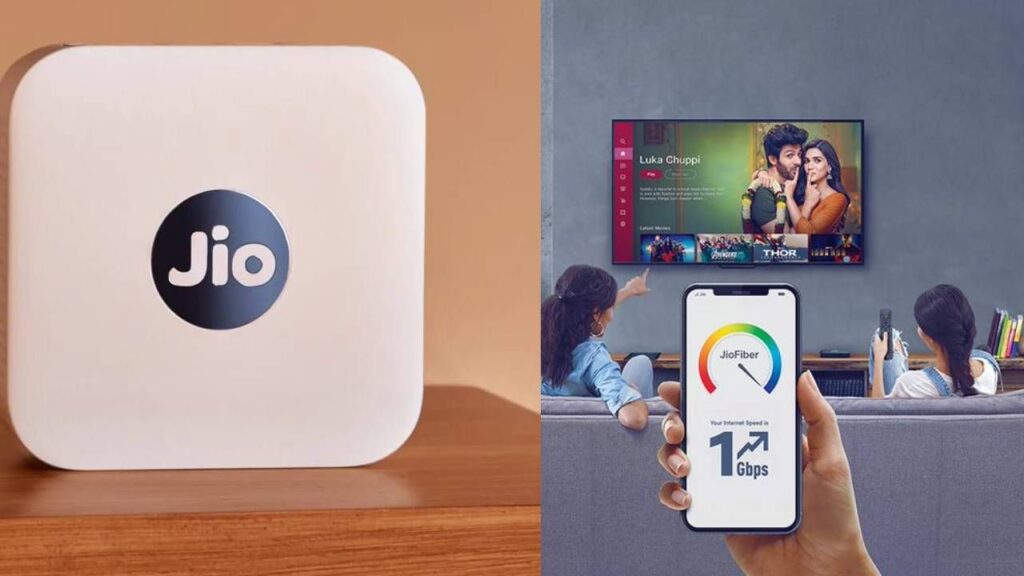
For more details on how to use the MyJio app for speed checks:
For a visual guide on using the MyJio app’s speed test feature:
Using the JioHome App
The JioHome app is another reliable method for testing the speed of your Jio Wi-Fi router.
- Launch the JioHome app on your mobile device.
- Ensure your phone is connected to your Jio Wi-Fi network.
- Select ‘Router’ to test the speed reaching your main equipment or ‘Mobile Phone’ to check the speed at your current location.
- Tap ‘Test Speed’ to begin the measurement.
Using Online Speed Test Websites
You can also use general online speed test tools to get a quick measurement.
- Connect your device to your Jio AirFiber Wi-Fi network.
- Open a web browser and visit a trusted speed test website like Speedtest by Ookla or Speed.is/in/jio/.
- Click the “GO” or “Start” button to initiate the test. The tool will measure your download speed, upload speed, and latency (ping).
For the most accurate results:
- Run the test while connected to your router using a wired Ethernet cable.
- Try to run tests during off-peak hours when network traffic is lower.
- Minimize the number of other devices connected to your network during the test.